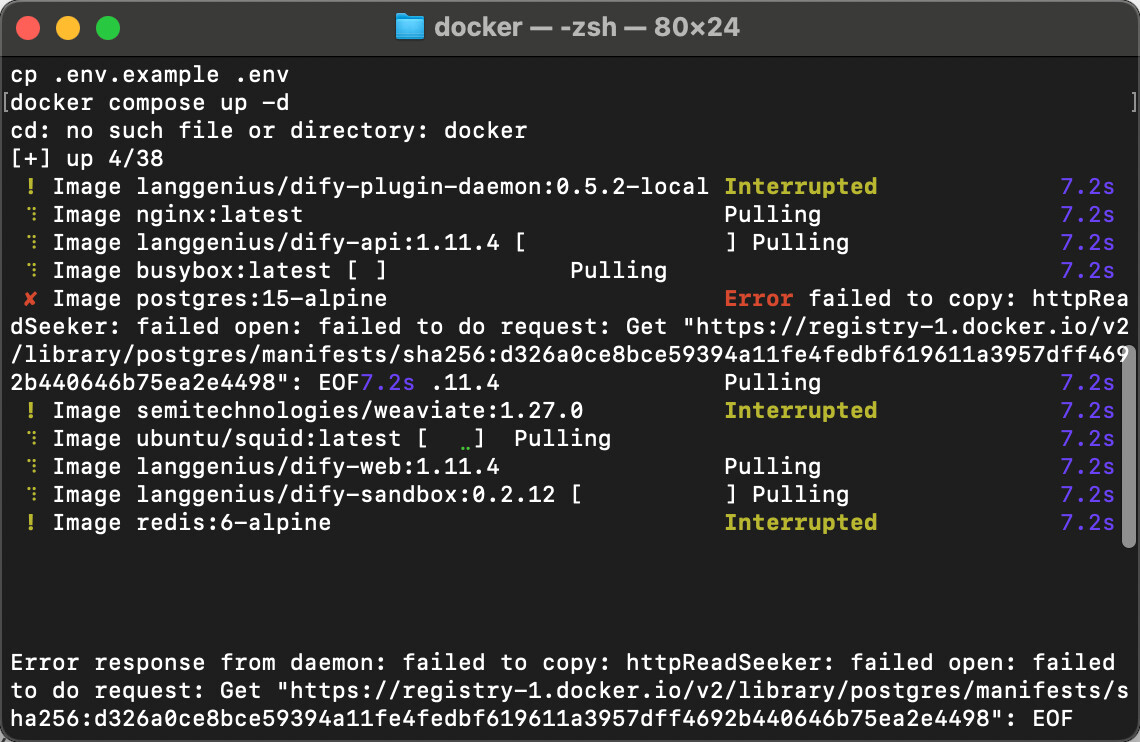
Based on the key information in the screenshot, it’s roughly:
- Pulling images when executing
docker compose up -d
postgres:15-alpine image pull failed- Error similar to:
failed to copy: httpReadSeeker: failed open: failed to do request ... EOF
This issue is not specific to Dify, but rather a network/environment problem when Docker pulls images on macOS, especially common in mainland China’s network environment. You can troubleshoot it step-by-step as follows:
1. Confirm Docker Desktop and Resource Settings
- It is recommended to use the latest stable version of Docker Desktop.
- Open Docker Desktop → Settings:
- In Resources, confirm:
- CPU ≥ 2 cores
- Memory ≥ 4G (official recommendation is 8G for more stability)
Insufficient resources can sometimes lead to abnormal container termination, but your primary issue currently is network-related, so first confirm there are no obvious anomalies.
2. Test Pulling postgres:15-alpine Separately
Run in the terminal (can be outside the dify directory):
docker pull postgres:15-alpine
- If it also reports EOF or timeout, it means the problem is unrelated to Dify and is an issue with Docker accessing Docker Hub.
- If it can be pulled, then re-execute:
cd /your_cloned/dify/docker
cp .env.example .env  # If not executed yet
docker compose up -d
3. Check Network Environment (VPN / Proxy / Company Network)
The following points are crucial for macOS users:
- Disable system and browser-level proxies/VPNs
You’ve already tried turning off VPNs, but it’s possible there’s still a “network proxy” enabled:
- System Preferences → Network → Current Network → Details → Proxies, turn them all off first.
- Check if Docker Desktop has proxy configured
- Docker Desktop → Settings → Resources → Proxies (or in General)
- If HTTP/HTTPS proxies are configured, remove them all first and then restart Docker Desktop.
- If on a company/campus network
- Some networks may restrict or intercept access to Docker Hub, leading to EOF.
- You can try:
- Switching to a different Wi‑Fi/mobile hotspot and try
docker pull postgres:15-alpine again.
- Or try again at home/on a different network.
4. Use Domestic Acceleration/Mirror Sources
Under mainland China’s network, direct access to registry-1.docker.io can easily result in EOF.
- Open Docker Desktop → Settings → Docker Engine.
- Change the configuration to something similar to the following (note to retain other useful fields, just add
registry-mirrors; Docker Desktop will restart automatically after changes):
{
  "registry-mirrors": [
    "https://docker.mirrors.ustc.edu.cn",
    "https://hub-mirror.c.163.com"
  ],
  "features": {
    "buildkit": true
  }
}
- After restarting Docker Desktop, execute:
docker pull postgres:15-alpine
If it can be pulled normally, then go to the dify/docker directory and execute docker compose up -d.
5. Clean Up Interrupted Images and Retry
Sometimes, partially downloaded layers can cause subsequent errors. You can clear the cache and retry:
# Stop all containers (if any)
docker compose down  # In the dify/docker directory

# Clean up unused images and layers
docker system prune -a

# Then manually pull postgres to test
docker pull postgres:15-alpine

# After success, start Dify
cd /your_cloned/dify/docker
docker compose up -d
6. Confirm Deployment Using Official Documentation Method
You are currently using a blog tutorial. I suggest comparing it with the official documentation to ensure the commands and directories are correct:
-
Clone the official repository:
git clone --branch "$(curl -s https://api.github.com/repos/langgenius/dify/releases/latest | jq -r .tag_name)" https://github.com/langgenius/dify.git
cd dify/docker
cp .env.example .env
docker compose up -d
-
If you don’t have jq locally, you can also go directly to the GitHub releases page to see the latest tag and specify the branch yourself.
7. If It Still Doesn’t Work, Please Provide This Information
You can reply to the post again and paste the output of the following commands (you can redact IP addresses as appropriate):
docker --versiondocker compose version- The complete error message from
docker pull postgres:15-alpine (copy as text, not a screenshot)
- Explain:
- Are you on a company/campus network?
- Are you using any VPN/proxy client names?
- Docker Desktop version number (can be seen in About Docker Desktop)
With this specific information, it will be possible to more accurately determine whether it’s a network, proxy configuration, or Docker’s own issue, and then provide you with more targeted solutions.